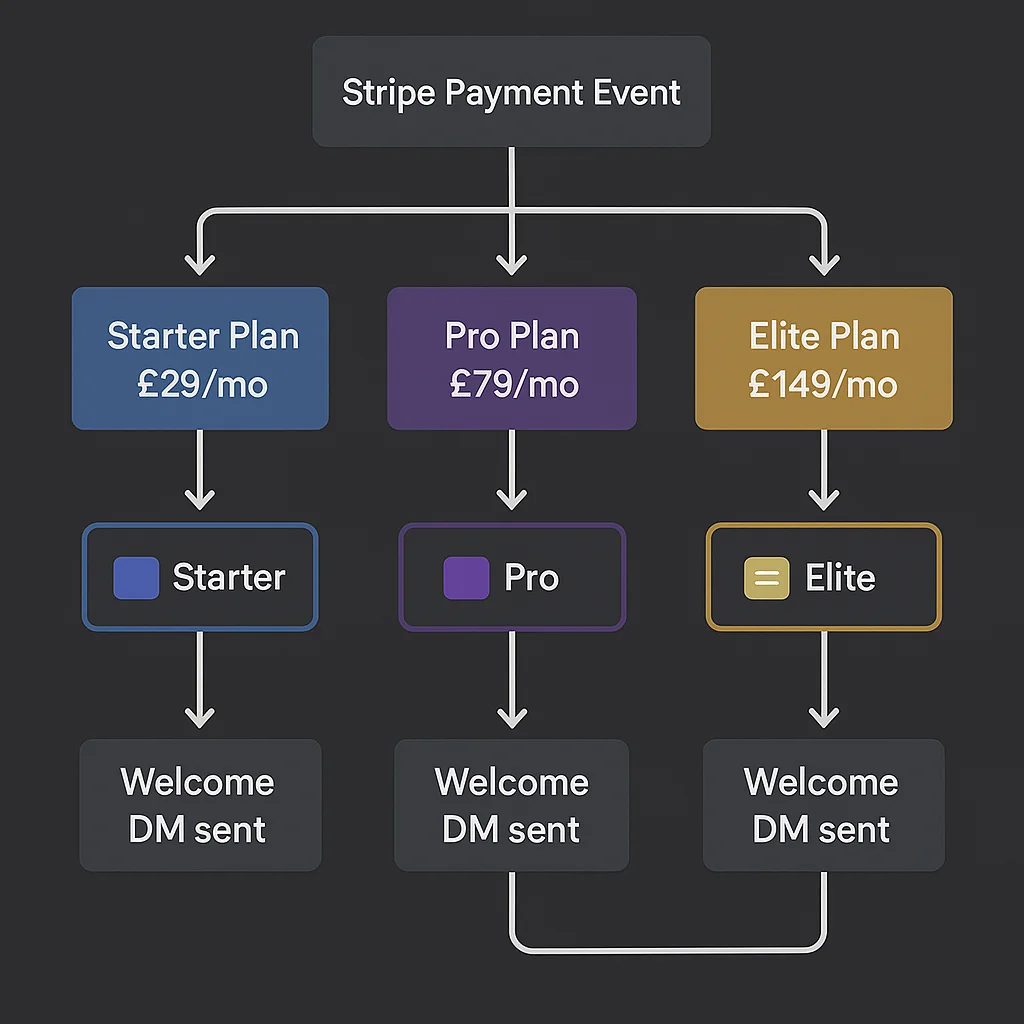
Automating Discord roles is how paid community operators replace the most error-prone part of running a membership: manually assigning and removing roles every time someone pays, upgrades, downgrades, or cancels. If you are running a multi-tier paid Discord community and assigning roles by hand, every new member is a manual task, every upgrade is something you might miss, and one busy week makes the whole system fall behind.
Here is how to automate Discord roles so every member gets the right access the moment they pay -- regardless of which tier they are on, what time it is, or what else is going on.
How tiered Discord role automation works
The mechanism is the same regardless of how many tiers you have. Stripe knows which product or price a member purchased. Discord controls access via roles. n8n sits in the middle and translates a Stripe payment event into a specific Discord role assignment.
The key is the mapping: each Stripe price ID maps to a Discord role ID. When a member pays for the Starter plan, n8n reads the price ID from the Stripe payload, looks up the corresponding Discord role ID, and assigns it. Pro plan gets a different role. Elite plan gets another. The same logic handles upgrades, downgrades, renewals, and removals.
Setting up your tier structure in Discord
Before building the automation, your Discord server needs the right role structure. A few rules that determine whether the automation works correctly:
One role per paid tier. Starter, Pro, Elite -- each tier has a dedicated role. Avoid overlapping roles for access control; it makes the removal logic complicated when members downgrade.
Channel permissions set at category level. Assign role permissions to channel categories, not individual channels. When you add a new channel to a tier's category, it inherits the right permissions automatically.
Bot role at the top of the hierarchy. Your bot's role must be positioned above every member role in the Discord role list. Discord only allows bots to manage roles ranked below their own. This is the most common setup mistake.
A gate role for new joins. New server joins should land in a limited-access state until their payment is confirmed and their role is assigned. A gate role that allows only read access to a welcome channel prevents unverified members from seeing paid content.
Building the role automation workflow in n8n
Step 1: Receive the Stripe webhook
Your n8n Webhook node listens for Stripe events. For automated Discord role management, the relevant events are:
checkout.session.completed-- new member paid. Assign their tier role.customer.subscription.updated-- member upgraded or downgraded. Swap roles.customer.subscription.deleted-- member cancelled. Remove their role.invoice.payment_succeeded-- renewal confirmed. Verify role is still active.invoice.payment_failed-- start grace period. Role stays for now, dunning begins.
Always verify the Stripe webhook signature in n8n using the signing secret from your Stripe webhook configuration. An unverified webhook endpoint accepts requests from anyone.
Step 2: Extract the price ID and determine the tier
From the Stripe payload, extract the price ID. For checkout.session.completed, this is at data.object.line_items.data[0].price.id. For subscription events, it is at data.object.items.data[0].price.id.
Add a Switch node that maps each price ID to a tier name. Three price IDs, three branches: Starter, Pro, Elite. Each branch carries a variable for the corresponding Discord role ID, set in a Set node.
Step 3: Look up the Discord user ID
Query your Airtable member database with the Stripe customer email to retrieve the stored Discord user ID. This is the link between Stripe's world and Discord's world, built during your OAuth join flow when the member first connected their Discord account.
Step 4: Assign the tier role via Discord API
HTTP Request node. Method: PUT. URL: https://discord.com/api/v10/guilds/{guild_id}/members/{discord_user_id}/roles/{role_id}. Header: Authorization: Bot YOUR_BOT_TOKEN.
A 204 response means success. Build an error branch to catch any non-2xx response and send a Slack alert immediately.
Step 5: Handle upgrades and downgrades
For customer.subscription.updated events, remove the old role and assign the new one. The payload includes both the previous and current price IDs. Use your mapping to look up both role IDs:
- Call DELETE on the old role:
DELETE /guilds/{guild_id}/members/{user_id}/roles/{old_role_id} - Call PUT on the new role:
PUT /guilds/{guild_id}/members/{user_id}/roles/{new_role_id}
Run these sequentially. Remove first, then assign. This prevents any period where the member holds both roles simultaneously.
Step 6: Send a role confirmation DM
After role assignment, send a DM confirming the access level. For new members, this is the welcome message. For upgrades, it confirms what new channels and content are now available. Write it once and it runs automatically.
Handling renewals and removals
Renewals. When invoice.payment_succeeded fires on a renewal, confirm the member still has their role. Most of the time they will. If they somehow lost it due to a bot outage or server issue, reassign it automatically here.
Trial periods. Listen for customer.subscription.trial_will_end to send a heads-up DM three days before trial expiry. When the trial converts to paid on the first successful charge, the role assignment flow handles it like any other new payment. If the trial expires without converting, treat it as a cancellation and remove the role.
Annual vs monthly billing. If you have both annual and monthly options at the same tier, they will have different price IDs in Stripe but should map to the same Discord role. Update your mapping to point both price IDs to the same role ID.
Member not found in database. Build a fallback branch for when the Airtable lookup returns no result. This happens when a member paid before your OAuth system was in place. Log it to Airtable as an exception, send a Slack alert, and handle manually. Never let the workflow fail silently.
What this looks like in production
A member pays for Pro at any time of day. Within five seconds: their Pro role is assigned in Discord, all Pro-gated channels are now visible, their welcome DM arrives, and a record is created in Airtable. You are not involved.
Six months later, the same member upgrades to Elite. Pro role removed, Elite role assigned, upgrade confirmation DM sent, Airtable record updated. Same five-second process, no manual action.
When they eventually cancel, role removed, offboarding DM sent, win-back sequence started. The entire membership lifecycle automated at any scale.
Want this set up correctly without the trial and error? We do payment-to-access automation for paid communities in 7 days. Book a free audit.
Related: Paid community automation: the complete guide | Connect Stripe to Discord | Handle renewals, failed payments and cancellations