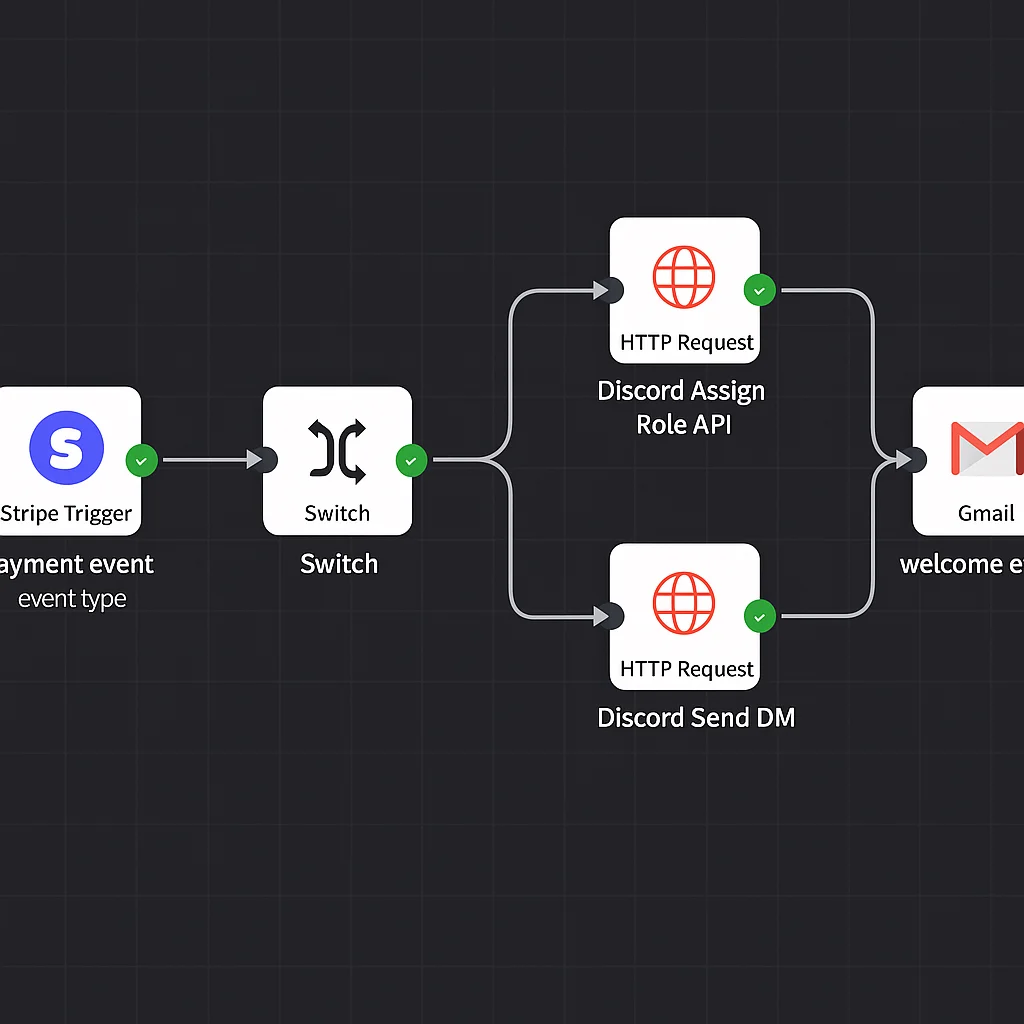
You don't need to write a line of code to connect Stripe to Discord. Stripe to Discord automation — instant role assignment on payment, auto-removal on cancel, failed payment grace periods — is fully buildable with n8n, a visual workflow builder that connects APIs on a drag-and-drop canvas.
This guide covers the full build: the OAuth user ID problem, the n8n workflow step by step, multi-tier role handling, and how the DIY approach compares in cost to platforms like LaunchPass and Whop.
Cost comparison: DIY n8n vs pre-built platforms
| Approach | $500 MRR | $1k MRR | $2k MRR | $5k MRR | $10k MRR |
|---|---|---|---|---|---|
| LaunchPass (3.5% + $0.50/member) | ~$35 | ~$60 | ~$110 | ~$250 | ~$470 |
| Whop (3%) | $15 | $30 | $60 | $150 | $300 |
| Memberful (4.9% starter) | ~$25 | ~$49 | ~$98 | ~$245 | ~$490 |
| Custom n8n build | ~$20 | ~$20 | ~$20 | ~$20 | ~$20 |
The crossover point where n8n clearly makes financial sense is around $1,000–1,500 MRR. Below that, platform convenience often justifies the fee. Above it, you're paying $150–470/month in perpetual fees for something that costs $20 to run yourself.
Which approach is right for your community?
- Under $1k MRR: Use Whop or LaunchPass. Zero setup, proven infrastructure, the fee is manageable at this stage.
- $1k–$3k MRR: Either works. If you're comfortable following a guide, n8n pays for itself in saved fees within 1–2 months.
- Above $3k MRR: Build custom on n8n. Platform fees compound meaningfully at scale and you gain full control over your membership logic.
- Multi-tier communities: Build custom from day one. Platforms handle basic tiers but their upgrade and downgrade logic is rigid. n8n lets you build the exact role mapping your community needs.
What you're building
The automation handles every Stripe membership lifecycle event and translates it into the correct Discord action — no manual work involved:
- Payment confirmed → Discord role assigned → Welcome DM sent
- Subscription cancelled → Discord role removed → Offboarding DM + win-back email triggered
- Payment failed → Dunning DM sent → 4-day grace period → Role removed if not recovered
- Failed payment recovered → Grace period cancelled → Confirmation DM sent
- Subscription upgraded → Old role removed → New role assigned
The tools you need
- Stripe — your payment processor. You likely already have this.
- Discord — your community platform.
- n8n — the automation layer. n8n Cloud starts at around $20/month. Self-hosting on a basic VPS costs under $10/month. Visual canvas, no coding required.
You'll also need a Discord bot (created via the Discord Developer Portal at no cost) and a member database — Airtable's free plan handles this at most community sizes.
The Discord user ID problem
Before you build, understand the key requirement: Stripe knows your members by email. Discord needs a user ID. These don't connect natively.
The solution is an OAuth join flow. After payment, redirect the member to a Discord authorisation page. They log in, Discord hands you their user ID, and you store it in Airtable linked to their Stripe email. n8n then uses this link for every future automation trigger.
If you use LaunchPass, Whop, or Memberful, they handle this OAuth step for you automatically. If you're building in n8n, you build this once — it's a redirect plus API call sequence that runs in the background.
Setting up your Discord bot
Go to discord.com/developers/applications and create a new application. Under Bot, create a bot and copy the token. In your Discord server, go to Server Settings → Roles and drag your bot's role above every member role in the hierarchy. This is critical — Discord only allows bots to manage roles positioned below their own in the list.
Invite the bot to your server with these permissions: Manage Roles, Send Messages, Create Direct Messages.
Building the Stripe to Discord workflow in n8n
Node 1: Webhook trigger
Create a new workflow in n8n. Add a Webhook trigger node and copy the URL it generates. In your Stripe dashboard → Developers → Webhooks, paste this URL and select these events: checkout.session.completed, customer.subscription.deleted, invoice.payment_failed, invoice.payment_succeeded, customer.subscription.updated (for tier changes).
Node 2: Switch (route by event type)
Add a Switch node routed on {{$json.body.type}} — the Stripe event type string. Create routes for each event: payment success, cancellation, failed payment, payment recovery, subscription update.
Node 3: Airtable lookup
Add an Airtable node set to Search Records. Search your member table where the Email field matches {{$json.body.data.object.customer_email}}. This returns the Discord user ID stored at the OAuth join step.
Node 4: HTTP Request — assign role
Method: PUT. URL: https://discord.com/api/v10/guilds/YOUR_GUILD_ID/members/{{$json.discord_user_id}}/roles/YOUR_ROLE_ID. Header: Authorization: Bot YOUR_BOT_TOKEN. For multi-tier communities, read the Stripe price ID from the webhook payload and map it to the corresponding Discord role ID using a lookup table in n8n or Airtable.
Node 5: Welcome DM
Create the DM channel first: POST to https://discord.com/api/v10/users/@me/channels with body {"recipient_id": "{{$json.discord_user_id}}"}. Then send the message to the returned channel ID. Keep the DM short — confirm access, link to the getting-started channel, set expectations for what comes next.
Handling cancellations and failed payments
When customer.subscription.deleted fires, the Switch routes to the offboarding branch: look up Discord user ID → remove role (DELETE /guilds/{guild}/members/{user}/roles/{role}) → send offboarding DM → trigger win-back email sequence.
For failed payments: send a dunning DM immediately, then add a Wait node set to 4 days. If invoice.payment_succeeded fires within that window, a separate branch cancels the removal and sends a recovery confirmation DM. If the wait completes without recovery, remove the role and trigger the offboarding sequence.
For a full walkthrough of the cancellation logic and grace period handling, see our guide on automating Discord member removal on cancellation.
Multi-tier Discord communities
For communities with multiple access tiers (Basic / Pro / VIP), build a Stripe price ID → Discord role ID mapping in n8n. When a payment fires, read the price.id from the webhook payload, look up the corresponding role, and assign it.
Handle upgrades and downgrades via the customer.subscription.updated event: compare the previous price ID to the new one, remove the old role, assign the new one. The full role swap typically completes in under 2 seconds.
Testing before going live
Stripe has a test mode. Create a test product, use test card 4242 4242 4242 4242, and verify the complete flow fires correctly in n8n's execution log before switching to live mode. Test in this exact order: successful payment → role assigned, DM sent, Airtable record created. Cancellation → role removed. Failed payment → dunning DM sent, grace period running. Payment recovery mid-grace-period → grace period cancelled, confirmation DM sent.
Do not skip the cancellation and failed payment tests. Those are the flows that protect your recurring revenue.
If you'd rather have this built and tested for you, book a strategy call and we'll scope the build.